Tuesday, June 28, 2016

Input Stream

Activity #2


Problem 1:

Write a program to require the user to input a string. Process the string by counting the total number of vowels and consonants in the string. For additional reference, please visit http://www.tutorialspoint.com/java/java_strings.htm , http://bit.ly/28TBVbB


VALIDATION

Sample Output #1:
Enter a string: Chance favors the prepared minds.

Vowels: 9
Consonants: 19

Sample Output #2:
Enter a string: The quieter you become, the more you are able to hear!

Vowels: 22
Consonants: 20

Sample Output #3:
Enter a string: Swing your rope down low.

Vowels: 7
Consonants: 13

------------------------------------------------------------------------------------------------------
Problem 2:

Write a program to require a string input from the keyboard. Using a loop structure, read the string backwards and display the result.

Sample Output #1:
Enter a string: Government
tnemnrevoG


Sample Output #2:
Enter a string: Aliens
sneilA

Sample Output #3:
Enter a string: Absurd
drusbA


Note: Once you're done, email the source code to adichosa@gmail.com. Use as subject <SECTION>-Act2-<fullname>. Deadline is on or before 12PM for Solus and 3PM for GNOME. TODAY!!!

Sunday, May 22, 2016

FIND THE SECOND LARGEST NUMBER IN THE ARRAY

/**
* find the second largest integer in an array.
* @param ia an array of integers
* @return the second largest number in ia
*/
private static int secondLargest(int[] ia)
{
int first_largest=0;
int second_largest=0;

//find the first largest
for (int i=0; i<ia.length; i++){
if (ia[i] > first_largest)//determine first the first largest so that we can identify the second largest
first_largest=ia[i];

}
//find the second largest
for (int i=0; i<ia.length; i++){
if (ia[i] > second_largest && ia[i]<first_largest) //check if it is the second largest
second_largest=ia[i];

}

return second_largest;
} //secondLargest

Tuesday, December 9, 2014

C++ Practice Exercise

Write a C++ program that will display the calculator menu.

The program will prompt the user to choose the operation choice (from 1 to 5). Then it should ask the user to input two integer values

for the calculation.

See the sample below.


MENU
  1. Add
  2. Subtract
  3. Multiply
  4. Divide
  5. Modulus

Enter your choice: 1

Enter your two numbers: 12 15

Result: 27
 
Continue? y


The program also asks the user to decide whether he/she wants to continue the operation. If he/she input ‘y’, the program will prompt

the user to choose the operation gain. Otherwise, the program will terminate.

Wednesday, November 26, 2014

COMPRO8 Activity #4

Things That Needs To Be Done Today
 
Study PHP Arrays in http://www.w3schools.com/php/php_arrays.asp

Activity #4

Problem:
Write a Web App to accept a string input (sentence) using a <textarea> element. During form submission, store each word of the sentence in an array named $words[].


Sample Output:

Web Interface

Enter a sentence: 

Result: Each word will be stored as element in the array.


words
Whatdidthefoxsay?Tingtingtingting...

Tuesday, September 30, 2014

Review - Activity #1

Sept 30, 2014
COMPRO2 - Excellence and Integrity

Problem #1
Write a program to compute the salary of an employee using the formula : salary=hours worked X hourly rate. Require an input for hours worked and hourly rate using the keyboard.

Sample output:
Enter hours worked: 20
Enter hourly rate: 70.50
Salary: 1410.0


Problem #2
Write a program to accept the gender of a person; 'M' for male and 'F' for female. Display an appropriate message based on gender.

Sample output:

Validation #1:
What is your gender? M
Good morning Sir!

Validation #2:
What is your gender? F
Good morning Ma'am!

Validation #3:
What is your gender? Male
Invalid gender!

SEND YOUR SOURCE CODE TO: adichosa@gmail.com
SUBJECT: <section>-COMPRO2-LACARLOTA-<fullname>


Monday, September 29, 2014

LOL

Watch the official trailer of "The Walking Dead" season 5. If you can!

Wednesday, September 24, 2014

Creating Printable Reports Using Data Environment and Data Report

Welcome to another tutorial! This time you will learn how to create simple printable reports in VB6 and MS Access using Data Environment and Data Report. Again, I would like to stress out that the approach that I am going to user is a simple one.

To start with, I will assume that you have the latest copy of our project, open it and add a Data Environment. How? Follow the steps below: 
  • Go to your project window and right click on Project1.
  • Select Add then Data Environment.
  • You will be prompted with a DataEnvironment window. Within it, by default, you will see DataEnvironment1 and Connection1 objects.
  • Right click on Connection1 and select Properties.


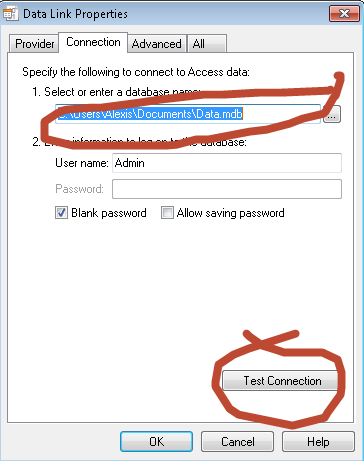
  • A Data Link Properties Window pops-up. Under Provider tab, select Microsoft Jet 4.0 OLE DB Provider and click Next button.

  • Right now, Connection tab is the default tab. From there, point the DataEnvironment to your database. In short, browse for your database.


  • Once done, click the Test Connection button to test the connection.
  • If executed properly, you will get a msgbox saying “Test connection succeeded”.
At this point, we have successfully established a connection to our database. The next series of steps is for the creation of Commands. We use Commands to execute SQL command via Data Environment. Follow the steps below:

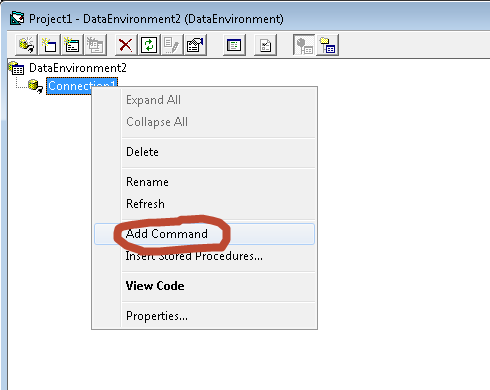
  • ight click on Connection1 and select Add Command.
     
  • A new command will be created, if this is your first command, its default name is Command1.
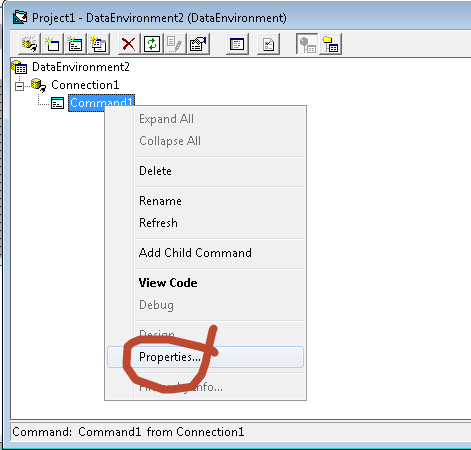
  • Right click on the newly created command and select Properties.

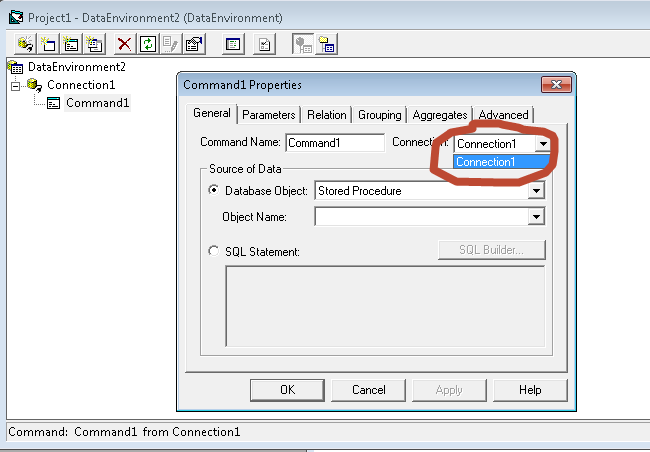
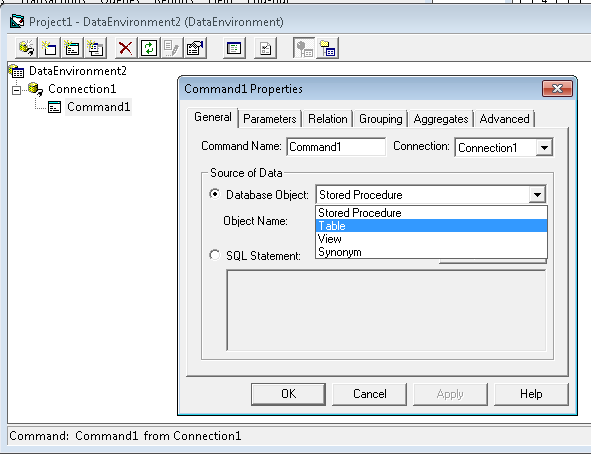
  • Command1 Properties window will popup. Under General tab toggle Connection box and select our newly created connection Connection1.

  • Next, set the Database Object to Table and select an Object Name from the list (Student or Vendor).

  • Finally, click OK.
Now we have successfully setup the DataEnvironment (the source of data for our report). It is time to create the actual report page. 

  • Add a Data Report to your Project. How? Right click on Project1 in you Properties window and select Data Report.
  • A new Data Report form will be created. Set its DataSource property to 'Connection1' and  DataMember to 'Command1'.
  • If you are experiencing any problems related to the connection at this point, you might want to re-visit the steps above.
Considering you have flawlessly executed the instructions, you are now ready to add data fields to your report form. To do this, just simply drag and drop any fields that you want to appear to your report (Data Report) from the Commands in your Data Environment. Finally, format your report according to your requirements.


Here comes the coding part. Remember recently we have added Report menu to our MDIForm? We are going to invoke the report using Studentlist item. Go to the Click event procedure of Studentlist and paste the following source code:

       DataReport1.Show

Run the application and test the report.

For Viral Stuff and Trending News, visit http://www.fooviral.com.